

VV Blog Image Layout Pattern Library
This page is a private draft reference for Valentina Vladi blog and venue articles. It is not meant for publication. Use these approved image layout patterns as building blocks instead of reinventing image sizing article by article.
Core rule: image layouts live inside the article content width. Horizontal images stay horizontal. Vertical images stay vertical. Equal height means equal displayed height, not equal 50/50 columns and not a forced orientation change.
Pattern 1 — Table of Contents
Use this exact Grand Ivory structure for venue guide table of contents. Desktop uses the full nested table of contents. Mobile uses the shorter H2-only table of contents.
Table of Contents
Canonical first H2: use My First Impression of The Venue Name Wedding Venue. The TOC link may stay shorter as My First Impression, but the article heading itself should include the venue name and “Wedding Venue,” as in Grand Ivory.
<h2 id="table-of-contents">Table of Contents</h2>
<nav class="vv-mobile-toc-short" aria-label="Mobile table of contents">
  <a href="#first-impression">My First Impression</a>
  <a href="#grounds">The Grounds</a>
  <a href="#how-it-photographs">How It Photographs</a>
  <a href="#pros-cons">Pros and Cons</a>
  <a href="#before-booking">What to Know Before Booking</a>
  <a href="#weather">What If the Weather Is Bad?</a>
  <a href="#pricing">Pricing and Rates</a>
  <a href="#real-wedding-photos">See Real Weddings</a>
</nav>
<nav class="vv-toc" aria-label="Table of contents">
  <ul>
    <li><a href="#first-impression">My First Impression</a></li>
    <li><a href="#grounds"><strong>The Grounds at The Venue</strong></a>
      <ul class="child">
        <li><a href="#chapel">The Chapel</a></li>
        <li><a href="#bridal-suite">The Bridal Suite</a></li>
      </ul>
    </li>
  </ul>
</nav>

<h2 id="first-impression">My First Impression of The Venue Name Wedding Venue</h2>
Pattern 2 — Single Horizontal Image
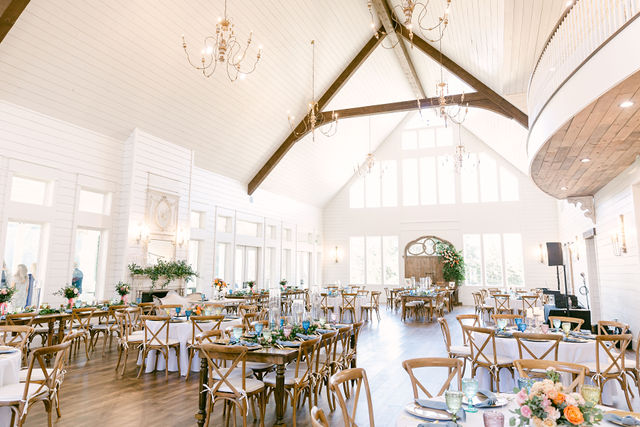
Use this for one normal horizontal photograph. It should fill the text/content column width, like the approved Grand Ivory article.
<figure class="vv-fig vv-single-horizontal">
  <img src="IMAGE_URL" alt="ALT_TEXT">
  <figcaption>Optional caption.</figcaption>
</figure>
Pattern 3 — Single Vertical Image + Wrapped Text
Use this when a chapter has one vertical photograph. The image sits on the left while the chapter text wraps naturally beside it, then continues at full width below the image. Do not use a vertical image as a standalone full-width image.
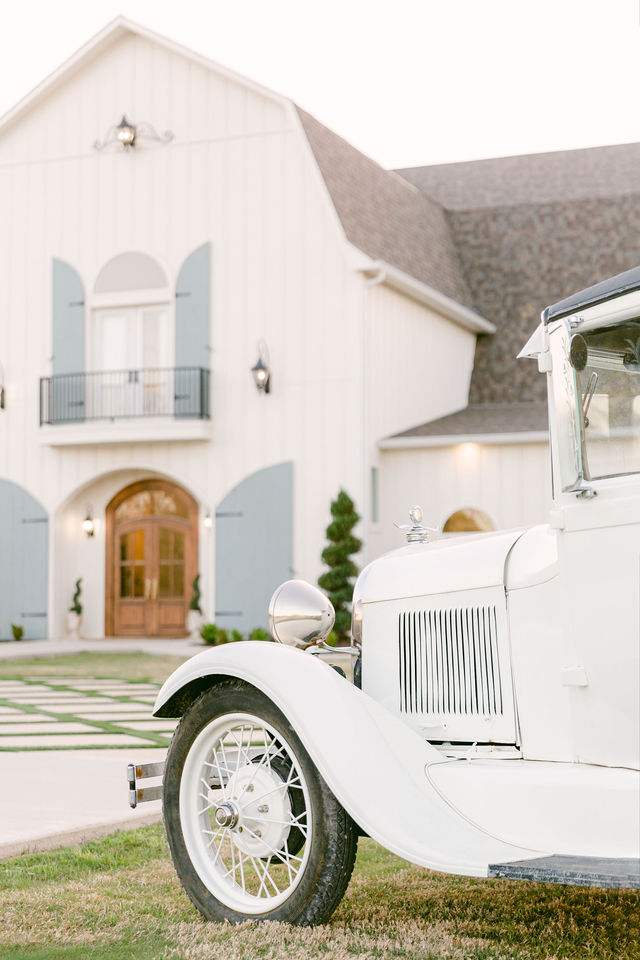
Chapter text begins here. While there is space beside the photograph, the text wraps naturally to the right of the image.
Additional paragraphs continue in the normal article flow. Once the text reaches the bottom of the photograph, it automatically continues across the full width of the article.
This keeps a single vertical photograph visually substantial without making it oversized, while allowing the image and written content to function together as one chapter layout.
<div class="vv-single-vertical-wrap">
  <figure class="vv-fig vv-single-vertical-wrap__figure">
    <img src="IMAGE_URL" alt="ALT_TEXT">
    <figcaption>Optional caption.</figcaption>
  </figure>
  <p>CHAPTER_TEXT</p>
  <p>ADDITIONAL_CHAPTER_TEXT</p>
</div>
Pattern 4A — Two Horizontal Images: Full Width Alternating
Use this when two horizontal photographs benefit from a larger presentation. This is the preferred image-first editorial sequence: image, text, image, text.
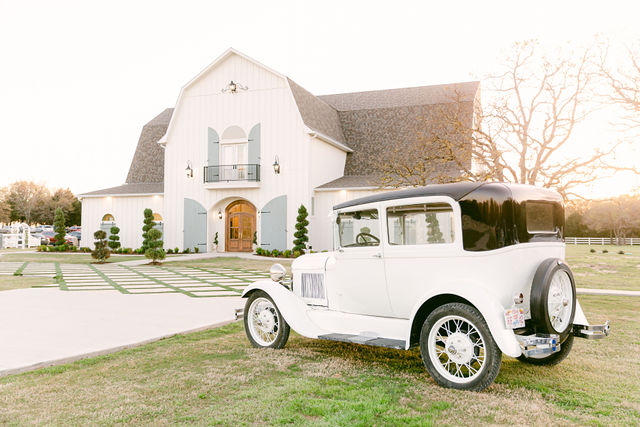
First paragraph of chapter text. This represents the first existing paragraph of the article section.
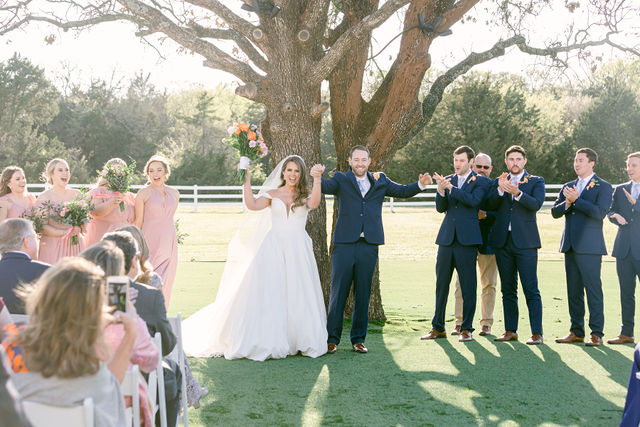
Second paragraph of chapter text. This represents the next existing paragraph of the article section.
<div class="vv-chapter-pair">
<figure class="vv-fig vv-pair-image"><img src="IMAGE_URL_1" alt="ALT_TEXT_1"></figure>
<p>PARAGRAPH_1</p>
<figure class="vv-fig vv-pair-image"><img src="IMAGE_URL_2" alt="ALT_TEXT_2"></figure>
<p>PARAGRAPH_2</p>
</div>
Pattern 4B — Two Horizontal Images: Side by Side
Use this when two horizontal photographs work naturally as a pair and a more compact presentation creates better visual rhythm.
First paragraph of chapter text. This represents the first existing paragraph of the article section.
Second paragraph of chapter text. This represents the next existing paragraph of the article section.
<div class="vv-chapter-pair vv-chapter-pair-side">
<figure class="vv-fig vv-pair-image vv-pair-image-1"><img src="IMAGE_URL_1" alt="ALT_TEXT_1"></figure>
<figure class="vv-fig vv-pair-image vv-pair-image-2"><img src="IMAGE_URL_2" alt="ALT_TEXT_2"></figure>
<div class="vv-pair-text">
<p>PARAGRAPH_1</p>
<p>PARAGRAPH_2</p>
</div>
</div>
Pattern 5 — Two Vertical Images + Chapter Text
Use this when both photographs are vertical. Keep the photographs together before the chapter text. On desktop, place them side by side. On mobile, stack them vertically before the text.
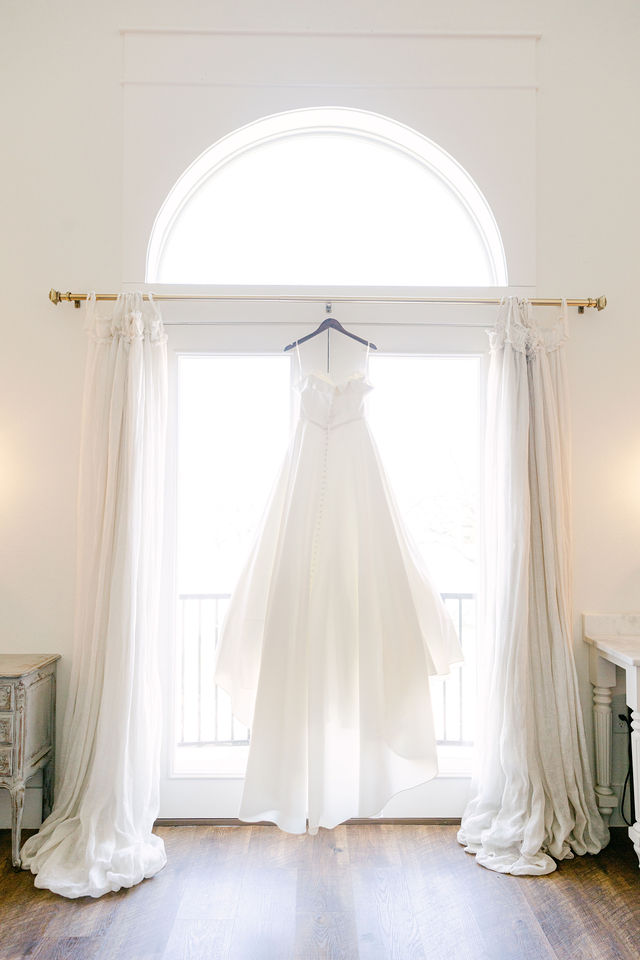
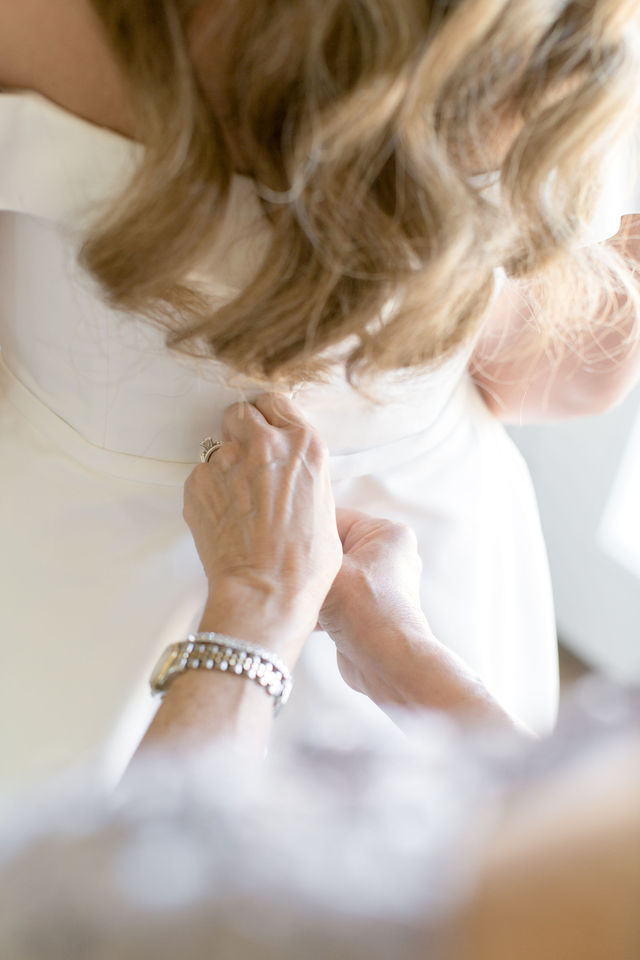
First paragraph of chapter text. This represents the first existing paragraph of the article section.
Second paragraph of chapter text. This represents the next existing paragraph of the article section.
<div class="vv-chapter-pair vv-chapter-pair-side">
<figure class="vv-fig vv-pair-image vv-pair-image-1"><img src="IMAGE_URL_1" alt="ALT_TEXT_1"></figure>
<figure class="vv-fig vv-pair-image vv-pair-image-2"><img src="IMAGE_URL_2" alt="ALT_TEXT_2"></figure>
<div class="vv-pair-text"><p>PARAGRAPH_1</p><p>PARAGRAPH_2</p></div>
</div>
Pattern 6 — Mixed Diptych: Vertical + Horizontal
First paragraph of chapter text. This represents the first existing paragraph of the article section.
<div class="vv-mixed-row">
<figure class="vv-fig vv-vertical"><img src="VERTICAL_IMAGE_URL" alt="ALT_TEXT"></figure>
<figure class="vv-fig vv-horizontal"><img src="HORIZONTAL_IMAGE_URL" alt="ALT_TEXT"></figure>
</div>
<p>CHAPTER_TEXT</p>
Pattern 7 — Mixed Diptych: Horizontal + Vertical
Same logic as above, reversed order. Use this when the horizontal image should lead visually.
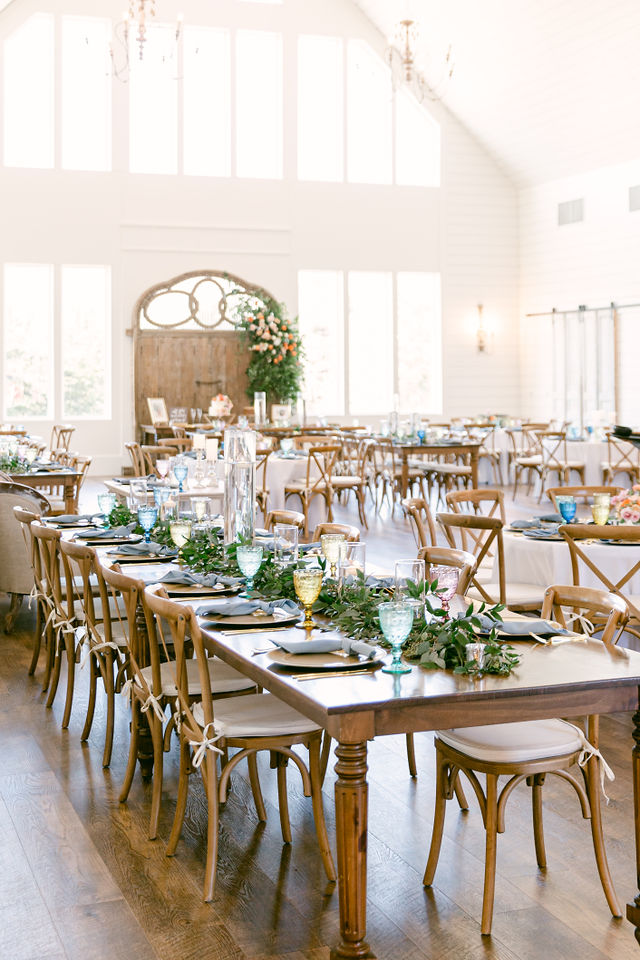
<div class="vv-mixed-row">
  <figure class="vv-fig vv-horizontal"><img src="HORIZONTAL_IMAGE_URL" alt="ALT_TEXT"></figure>
  <figure class="vv-fig vv-vertical"><img src="VERTICAL_IMAGE_URL" alt="ALT_TEXT"></figure>
</div>
Pattern 8A — Grand Ivory Editorial Row: Image Left + Text Right
Use this when one photograph and one text block need to sit together visually, exactly like the approved Grand Ivory chapel light example.
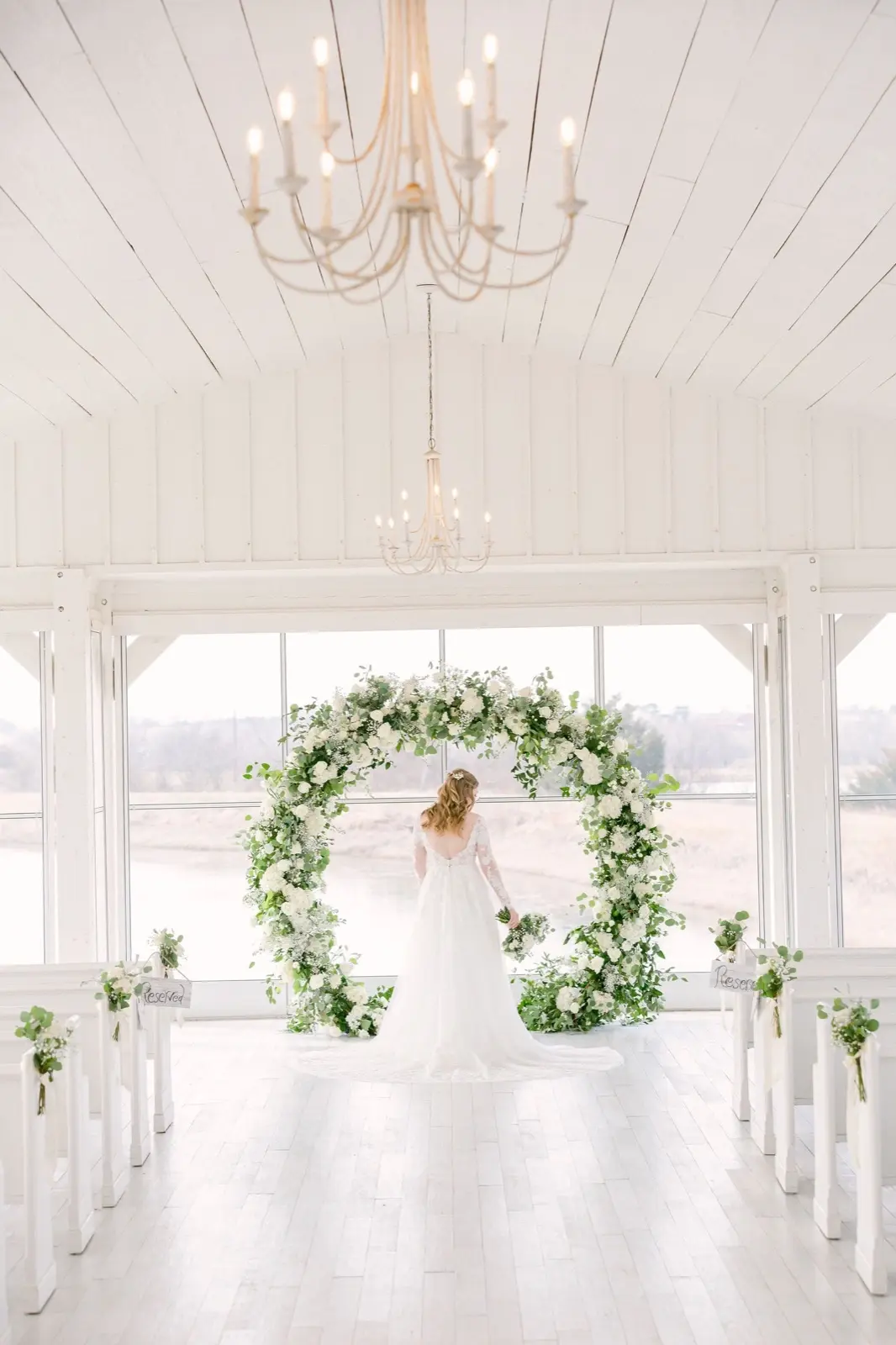
The Chapel in the Morning Light: Earlier in the day, the chapel can feel soft and open, with gentle reflected light and lower contrast. It works beautifully for close-up portraits, first looks or group family photographs.
<div class="vv-light-row vv-light-row-forward">
  <figure class="vv-fig">
    <img src="IMAGE_URL" alt="ALT_TEXT">
    <figcaption>Optional caption.</figcaption>
  </figure>
  <div>
    <p><strong>TEXT LEAD-IN:</strong> TEXT</p>
  </div>
</div>
Pattern 8B — Grand Ivory Editorial Row: Text Left + Image Right
Use this as the alternating version of Pattern 8A. It should visually mirror the Grand Ivory example: text on the left, photograph on the right.
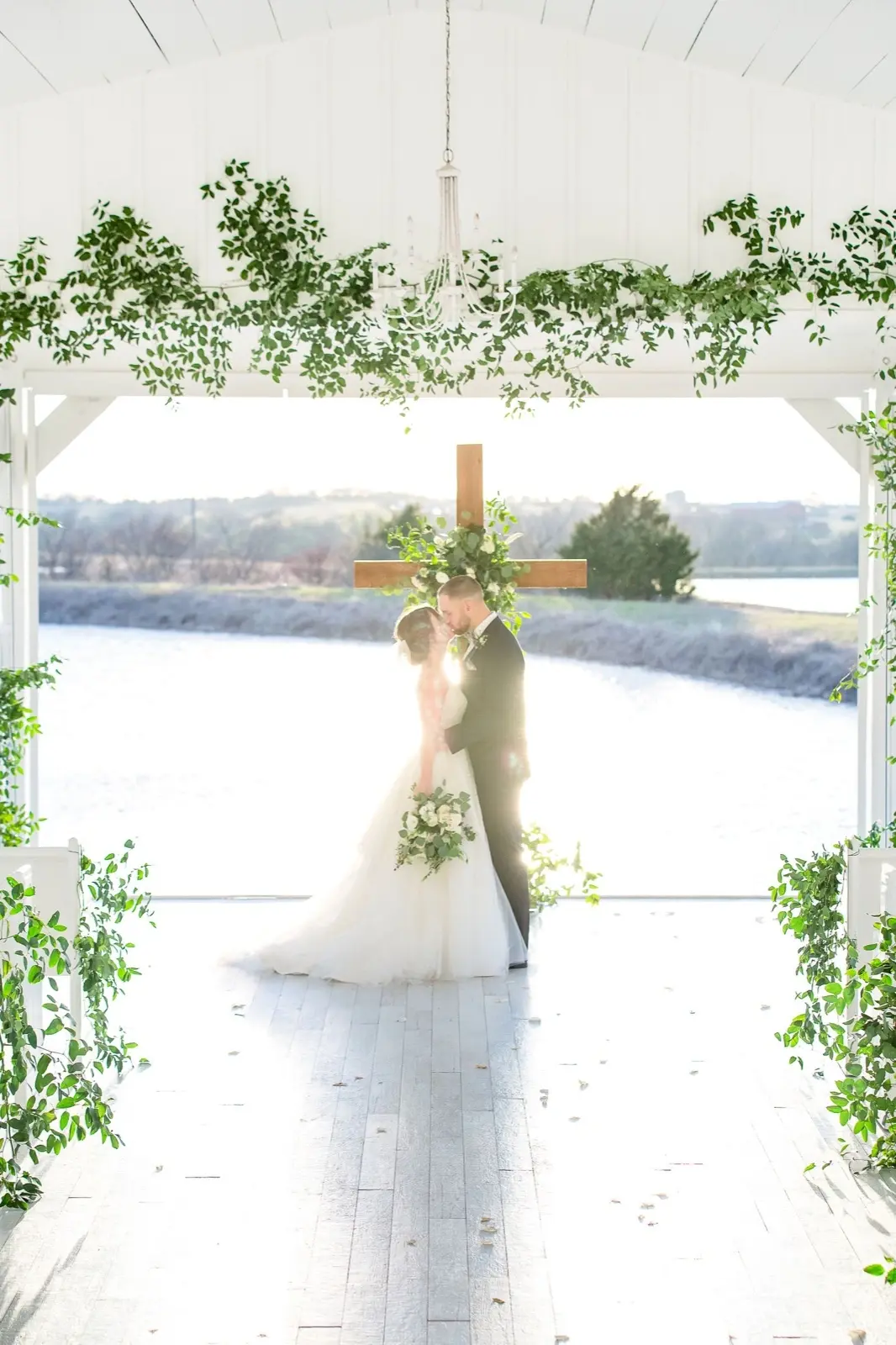
The Chapel in the Afternoon Light: Later in the day, especially near sunset, the light can become more dramatic. When the sun is behind the couple, the background can look luminous, with water and sky behind them, but the subjects can also become more backlit. That can be beautiful in the hands of a photographer who knows how to handle it, but it is something to plan around.
<div class="vv-light-row reverse">
  <div>
    <p><strong>TEXT LEAD-IN:</strong> TEXT</p>
  </div>
  <figure class="vv-fig">
    <img src="IMAGE_URL" alt="ALT_TEXT">
    <figcaption>Optional caption.</figcaption>
  </figure>
</div>
Pattern 9 — Real Weddings Block
Use this near the end of a venue guide when linking to real weddings. This block should copy the approved Grand Ivory structure. If fewer real weddings are available, remove cards from the left side first so the remaining cards keep the same right-side visual position.
Three Real Weddings
WEDDINGS
from The Grand Ivory
 Leonard, TexasCaitlin + Reid at The Grand IvoryLeonard, TexasAlexx + Jonatan at The Grand IvoryLeonard, TexasAmy + Kyle at The Grand Ivory
<section class="vv-featured-grid">
<div class="vv-featured-head">
<div class="vv-featured-title">REAL<br>WEDDINGS</div>
<h2 class="vv-featured-label">Real Wedding Photos from The Venue</h2>
</div>
<div class="vv-featured-cards">
<div class="vv-featured-card">
<img src="IMAGE_URL" alt="ALT_TEXT">
<span class="place">City, State</span>
<span class="title">Couple + Couple at Venue</span>
</div>
</div>
</section>
Two Real Weddings
WEDDINGS
Real Wedding Photos from The Venue
Venue City, State
Couple + Couple at Venue
Venue City, State
Couple + Couple at Venue
<div class="vv-featured-cards vv-two-cards">
  <div class="vv-featured-card">...</div>
  <div class="vv-featured-card">...</div>
</div>
One Real Wedding
WEDDINGS
Real Wedding Photos from The Venue
Venue City, State
Couple + Couple at Venue
<div class="vv-featured-cards vv-one-card">
  <div class="vv-featured-card">...</div>
</div>
Pattern 10 — Text Break / Highlighted Text Block
First paragraph of chapter text. This represents normal article copy before the visual text break.
Second paragraph of chapter text. When several text-heavy paragraphs appear together, the article may need a visual break to keep the page from becoming monotonous.
This paragraph is part of the article itself. A subtle background change can be used to create visual rhythm and separate an important thought or section of text without turning it into a separate heading.
Chapter text continues normally after the highlighted block.
<p>PARAGRAPH_1</p>
<p>PARAGRAPH_2</p>
<div class="vv-pattern-note">
<p>HIGHLIGHTED_PARAGRAPH</p>
</div>
<p>PARAGRAPH_3</p>


